
AWS VPC Basics: Subnets, Route Tables, Gateways and Security, Explained
- Intro
- What a VPC actually is
- Subnets
- Route tables and the internet gateway
- NAT gateways: a way out, but not a way in
- Network ACLs and security groups
- Putting it all together
- Can’t reach your instance? Check these
- Wrapping up
Intro
I’ve used AWS for years, but for a long time the VPC was the part I clicked through with the defaults and hoped for the best. The article that finally made it click for me was J Cole Morrison’s “AWS VPC Core Concepts in an Analogy and Guide”. His blog has since gone offline, but you can still read it on the Wayback Machine. If you like learning through analogies, it’s well worth a read.
This post is my own take on the same topic. I’ll go through the handful of pieces that make up a VPC, what each one does, and how they fit together. By the end you should be able to look at a VPC diagram and know why every box is there. I’ll cover:
- What a VPC is, and how to pick its IP range
- Subnets
- Route tables and internet gateways (and what actually makes a subnet “public”)
- NAT gateways
- Network ACLs and security groups
- How it all fits together, plus a checklist for when you can’t reach an instance
On a phone, tap any diagram to open it full size.
What a VPC actually is
A VPC (Virtual Private Cloud) is your own private network inside AWS. Things you launch into it, like EC2 instances, databases and load balancers, get private IP addresses from it and can talk to each other. Nothing from the outside can get in unless you deliberately set things up to allow it.
A VPC lives in one Region, like ca-central-1 (Canada Central), and stretches across all of that Region’s Availability Zones (AZs). An AZ is one or more data centers with their own power and networking, a few kilometres away from the others. Spreading your stuff across AZs is how you survive one of them having a bad day.
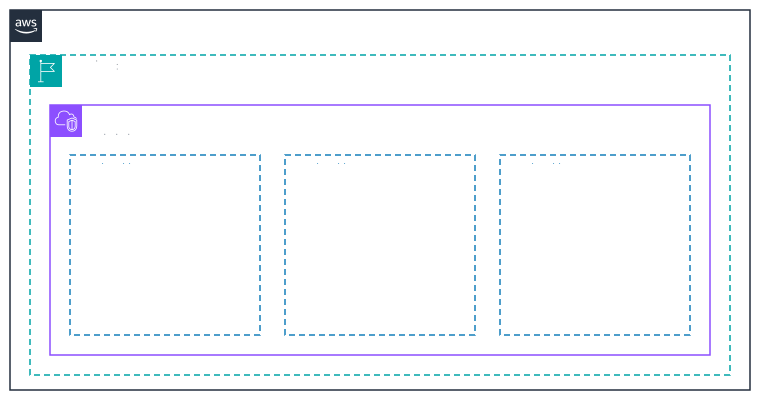
Every AWS account comes with a default VPC in each Region. It uses 172.31.0.0/16, has a public subnet in every AZ and already has an internet gateway attached. That’s why you can launch an EC2 instance and SSH into it without ever thinking about networking. It’s fine for quick experiments, but for anything real I’d build your own, so you decide what’s exposed to the internet instead of AWS deciding for you.
Picking an IP range
When you create a VPC, you give it a range of IPv4 addresses in CIDR notation, like 10.0.0.0/16. The number after the slash says how many bits of the address are fixed. Everything after that is yours to hand out. A smaller number means a bigger network:
| CIDR | Addresses |
|---|---|
| /16 | 65,536 |
| /20 | 4,096 |
| /24 | 256 |
| /28 | 16 |
A few rules and tips:
- A VPC can be anywhere from a
/16down to a/28. - Use one of the private ranges:
10.0.0.0/8,172.16.0.0/12or192.168.0.0/16. - Go bigger than you think you need. A
/16costs nothing extra, and while you can add more ranges to a VPC later, it’s messier than getting it right the first time. - Don’t overlap with networks you might connect to one day: other VPCs, your office network, or a network on the other end of a VPN. Overlapping ranges can’t be routed between, and fixing that later is painful.
Subnets
A subnet is a slice of your VPC’s range, and it lives in exactly one AZ. Subnets are where you actually launch things. You can’t put an EC2 instance “in a VPC”, only in a subnet inside it.
Here’s a typical layout: a /16 VPC with a public and a private /24 subnet in each of two AZs.
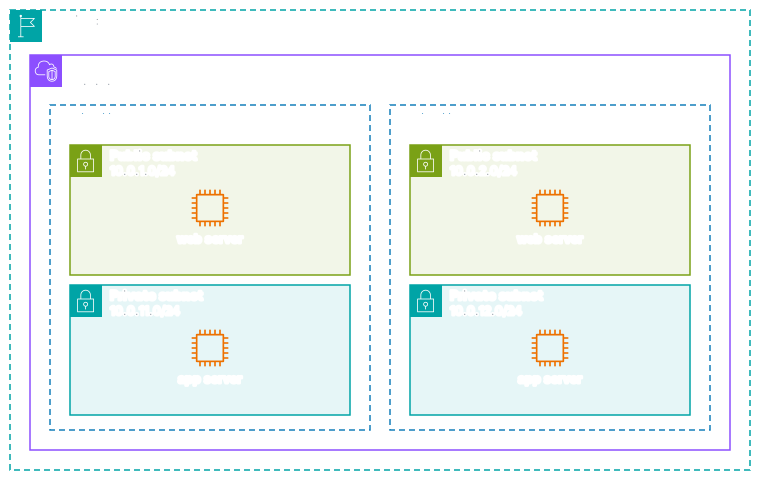
I like leaving gaps in the numbering (10.0.1.x and 10.0.2.x for public, 10.0.11.x and 10.0.12.x for private). It makes it obvious at a glance which kind of subnet an IP belongs to, and leaves room to add more AZs later.
One thing that surprises people: AWS reserves 5 addresses in every subnet. In 10.0.1.0/24 those are:
10.0.1.0: the network address10.0.1.1: the VPC router10.0.1.2: the Amazon DNS server10.0.1.3: reserved for future use10.0.1.255: the broadcast address (VPCs don’t support broadcast, but it’s reserved anyway)
So a /24 gives you 251 usable addresses, not 256. That barely matters for a /24, but a /28 only gives you 11.
And here’s the most important thing about subnets: “public” and “private” aren’t settings. There’s no checkbox for it. Whether a subnet is public depends entirely on its route table, which brings us to…
Route tables and the internet gateway
Every subnet is linked to exactly one route table. A route table is a list of rules that say “traffic headed for this range goes there”. If you don’t link a subnet to one yourself, it uses the VPC’s main route table.
Every route table starts with a local route for the VPC’s own range, and you can’t remove it. That’s why everything inside a VPC can reach everything else (as long as the security rules we’ll get to later allow it). When more than one route matches, the most specific one wins, so 10.0.0.0/16 beats 0.0.0.0/0 for traffic inside the VPC.
An internet gateway is the VPC’s door to the internet. You get at most one per VPC, AWS runs it for you, and it scales on its own, so there’s no bandwidth to size and no charge for the gateway itself (you still pay for data transfer). Attaching it does nothing on its own, though. It only gets used when a route table sends traffic to it:
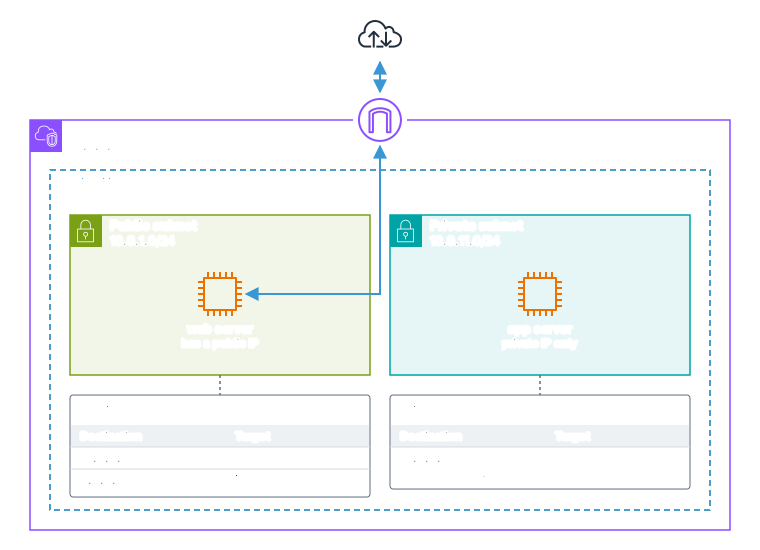
That 0.0.0.0/0 → igw-... route is the whole definition of a public subnet. The public route table has it; the private one doesn’t, so anything in the private subnet has no way out to the internet (and no way in).
For an instance in a public subnet to actually be reachable, it needs all three of these:
- A public IPv4 address, either auto-assigned at launch or an Elastic IP
- A route to the internet gateway in its subnet’s route table
- Security rules that let the traffic through
A fun detail: the instance never sees its own public IP. If you run ip addr on it, you’ll only see the private one. The internet gateway translates between the two on the way in and out.
It’s also worth knowing that AWS has charged for every public IPv4 address since February 2024. It’s not much per address, but it’s one more reason to keep as little as possible public.
NAT gateways: a way out, but not a way in
Your private app servers still need to reach the internet sometimes: installing OS updates, calling a third-party API, pulling container images. You don’t want to make them public just for that. That’s what a NAT gateway is for.
The NAT gateway sits in a public subnet and has an Elastic IP. The private subnet’s route table sends 0.0.0.0/0 to the NAT gateway instead of the internet gateway. When the app server makes a request, the NAT gateway swaps the source address for its own, sends it out through the internet gateway, and passes the reply back. Nothing on the internet can start a connection to the app server, because there’s no route in.
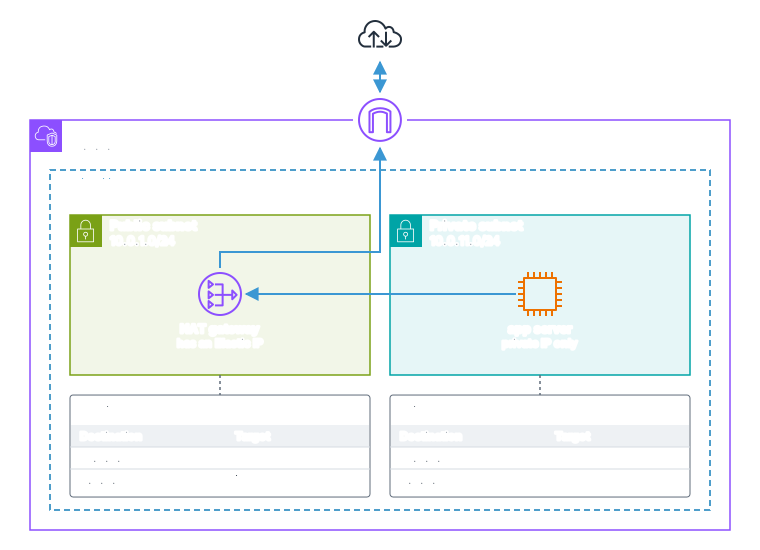
A few things to know before you add one:
- A NAT gateway lives in one AZ. If that AZ has an outage, private subnets in other AZs that route through it lose internet access too. The usual setup is one NAT gateway per AZ, with each private route table pointing at the one in its own AZ.
- It isn’t free. You pay by the hour, plus for every gigabyte it processes. On a small side project, NAT gateways can easily be the biggest line on the bill. If most of that traffic goes to AWS services like S3 or DynamoDB, a gateway VPC endpoint sends it there privately, and those are free.
- For IPv6 there’s an egress-only internet gateway, which does the same “out but not in” job.
Network ACLs and security groups
A VPC gives you two layers of firewall, and they work quite differently:
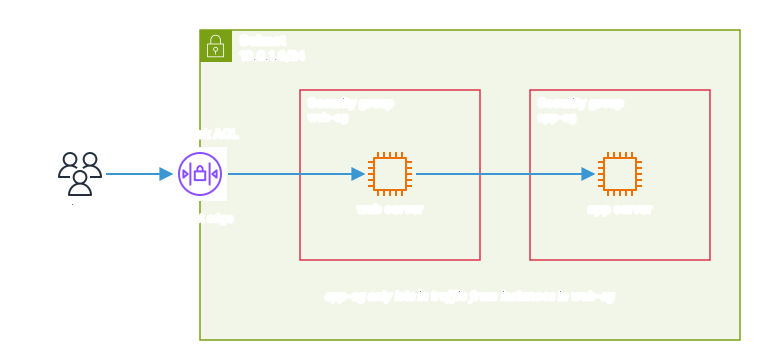
- Network ACLs sit at the edge of a subnet and check everything going in and out of it.
- Security groups are attached to individual network interfaces, so effectively they wrap each instance, database or load balancer.
| Network ACL | Security group | |
|---|---|---|
| Protects | A whole subnet | Individual network interfaces |
| Remembers traffic | No (stateless): replies need their own rule | Yes (stateful): replies are allowed automatically |
| Rule types | Allow and deny | Allow only |
| How rules are checked | In number order; the first match wins | All rules together; if any rule allows it, it’s allowed |
| Out of the box | The default NACL allows everything; a new NACL denies everything | A new security group allows no inbound and all outbound traffic |
The “stateless” part of network ACLs catches almost everyone at least once. When a browser connects to your web server on port 443, the reply goes back to a random high port on the browser’s side, somewhere between 1024 and 65535 (the ephemeral ports). A security group remembers the connection and lets the reply out. A network ACL doesn’t, so unless you also allow outbound traffic to those ports, the request gets in and the response silently disappears.
Security groups have a really useful trick: a rule’s source can be another security group instead of an IP range. In the diagram above, app-sg allows port 8080 only from web-sg. Any instance in web-sg can reach the app servers, and nothing else can, no matter what IP it has. When you add more web servers, you don’t touch a single rule.
A common approach is to let security groups do the real work and leave network ACLs at their default “allow everything”, only adding NACL rules when you need a subnet-wide deny, like blocking a misbehaving IP range.
Putting it all together
Here’s everything in one picture: two AZs, each with a public and a private subnet, a NAT gateway per AZ, network ACLs on the subnets and security groups around the instances.
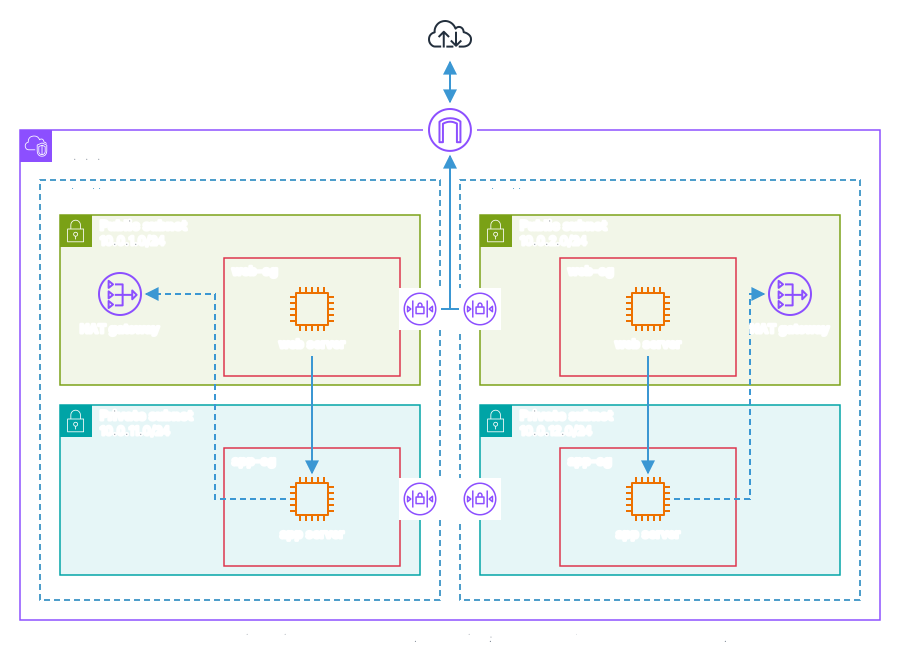
Let’s follow a request through it:
- A browser connects to a web server’s public IP on port 443.
- The internet gateway translates the public IP to the server’s private IP and hands the traffic into the VPC.
- The public subnet’s network ACL checks it against its inbound rules.
web-sgallows port 443 from anywhere, so it reaches the web server.- The web server calls the app server on port 8080. That traffic stays inside the VPC thanks to the
localroute, andapp-sglets it in because it comes fromweb-sg. - The app server needs to call an external API. Its private route table sends that to the NAT gateway in the same AZ, which sends it out through the internet gateway.
In a real setup, you’d usually put an Application Load Balancer in the public subnets and move the web servers into private subnets too, so the load balancer is the only thing with a public address. I left it out to keep the diagram readable, but the idea is the same.
If you’d rather not build all of this by hand, the “VPC and more” option in the VPC console’s create wizard sets up this layout (VPC, subnets per AZ, route tables, internet gateway and optional NAT gateways) in one go. It’s also a nice way to see how the pieces connect.
Can’t reach your instance? Check these
When something in a VPC won’t connect, it’s almost always one of these, roughly in this order:
- Public IP: does the instance actually have one?
- Internet gateway: is one attached to the VPC?
- Route: does the subnet’s route table have
0.0.0.0/0pointing at the internet gateway? - Security group: does it allow the port, from your IP?
- Network ACL: does it allow the port inbound, and the ephemeral ports outbound?
- The instance itself: is the service running, listening on the right interface (not just
localhost), and not blocked by the OS firewall?
If you’re still stuck, VPC Reachability Analyzer can trace the path between two resources and tell you exactly which piece is blocking it.
Wrapping up
A VPC looks complicated at first, but it’s really just a few simple ideas stacked on top of each other: an IP range, split into subnets, with route tables deciding where traffic goes, gateways for getting in and out, and two layers of firewall. Once you know what each piece does, the diagrams stop looking like spaghetti.
Thanks for reading! If you have questions or spot a mistake, find me on twitter.